JPG Compressor - Compress JPEG Files Online
Compress JPG files online and reduce JPG size without changing the file format or the pixel dimensions. This JPEG compressor encodes each image again with a balanced quality setting, so the file uses less storage and uploads, loads, and sends faster.
How to Compress JPG Online?
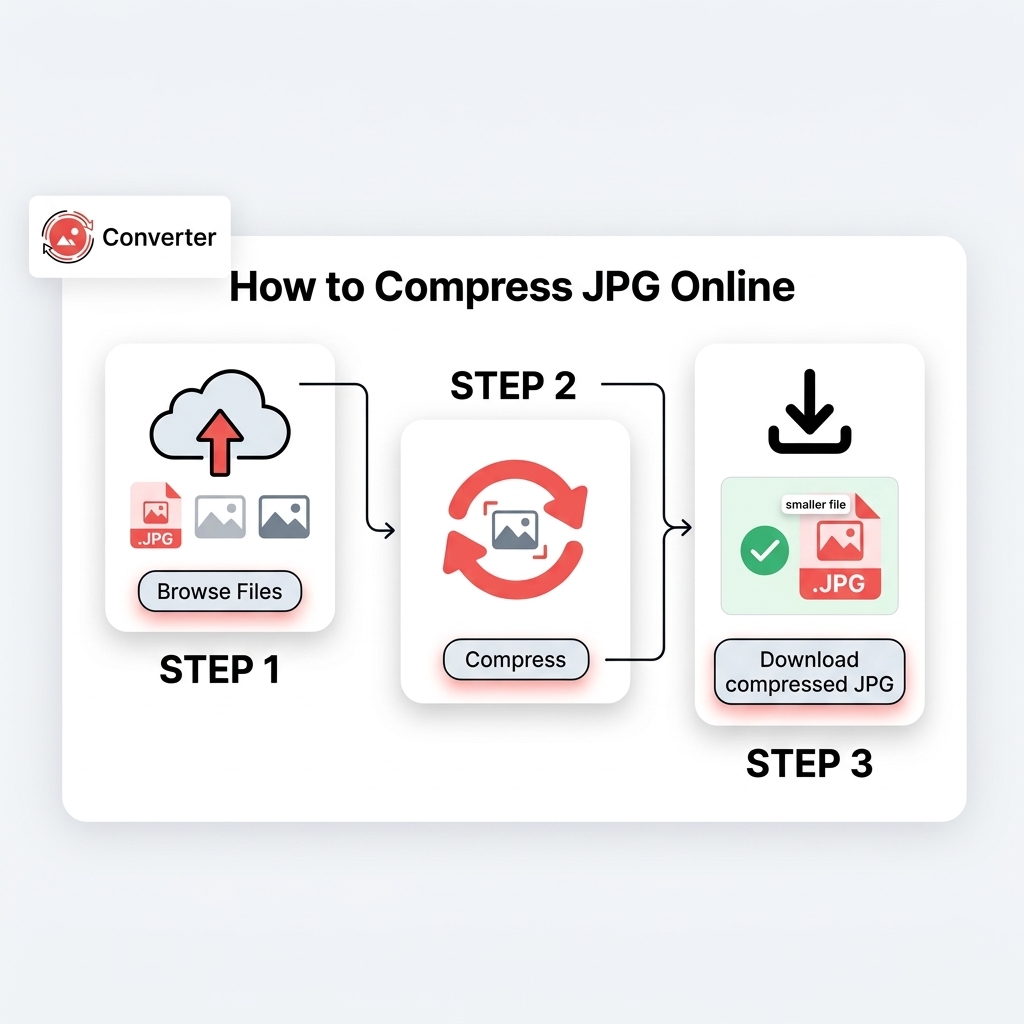
Follow these steps to compress JPG or JPEG files:
-
STEP 1.
Click the “Browse Files” button or drag and drop files into the upload area.
-
STEP 2.
Choose the compression level, and then click the “Compress JPG” button.
-
STEP 3.
Download the compressed JPG files to your device.
Features of the JPG Compressor
The main features of this JPEG size reducer are listed below:

Simple Interface
Upload your files, wait for processing, and download the results. The tool works in any modern web browser on desktop, tablet, and mobile, and it requires no software installation or technical knowledge.

No Cost
The JPG size reducer is free to use and does not require registration. There is no software to purchase and no account to create before you compress JPG images online.

Batch Processing
Users can compress 500 or more JPG images in one session. Batch processing helps when a product catalog, an event gallery, or a set of scanned pages needs the same treatment.

Automatic Quality Balance
Our image compressor picks a quality level that makes the file smaller while keeping the image looking clear. This helps avoid setting the quality too low, which can cause blocky or rough areas in smooth parts like skies and skin.

Secure File Handling
Uploaded files are processed securely and deleted automatically within 1 hour. No one except you has access to your images.

All Formats Compatibility
This image compressor is compatible with all types of image files, including JPG, JPEG, PNG, WebP, JFIF, HEIC, HEIF, and TIFF. You are not limited to compressing JPGs, you can compress any type of images in this tool.
Who Can Use the JPG Compressor?
 Web Developers and SEO Professionals
Images are often the Largest Contentful Paint element on a page, and Google treats an LCP of 2.5 seconds or less as good. Compressing hero images, banners, and gallery photos reduces the data a browser must download before the main content appears, which supports Core Web Vitals scores and mobile performance.
 Bloggers and Online Store Owners
Blog posts and product listings often carry many photos. A JPG size reducer keeps pages light, helps listings load on slow mobile connections, and lowers storage and bandwidth use on hosting plans and media libraries.
 Photographers
Camera JPEGs often reach several megabytes each. Compressed copies suit client previews, online portfolios, and proofing links, while the original files stay untouched in the archive.
 Students and Office Professionals
Application portals, learning platforms, and document systems frequently cap upload size. Gmail limits a message to 25 MB including attachments, so five photos of 5 MB each already reach that limit. Compressing the images first keeps them within those limits.
How JPG Compression Works
Lossy Process
JPG uses lossy compression. The encoder splits the image into brightness and color channels, divides it into 8×8 blocks, and applies the discrete cosine transform to separate broad shapes from fine detail. A quantization step discards the finest detail, while chroma subsampling stores colors at lower resolution since the eye is more sensitive to brightness. The remaining data is packed with entropy coding.
Quality Value
The quality value, usually shown from 0 to 100, controls how aggressively the quantization step removes detail. Lower values produce smaller files but more visible artifacts such as blocky edges and blurred textures. Note that the scale is not standardized, so a quality of 80 in one encoder may not produce the exact same file size or result as quality 80 in another.
Repeated Saving
Repeated saving matters a lot. Each time a JPG is opened, edited, and saved, it is encoded again, causing compression artifacts to accumulate and degrade the image. It is highly recommended to compress directly from the original source file and avoid recompressing a file that has already been compressed.
Which JPG Quality Level Should You Use?
| Use Case | Suggested Quality | Notes |
|---|---|---|
| Archive and print | 90 to 100 | Preserves fine detail, files stay large |
| Website photos and product images | 75 to 85 | Common balance between size and sharpness |
| Email and messaging | 70 to 80 | Keeps attachments within provider limits |
| Thumbnails and previews | 60 to 70 | Small display size hides artifacts |
These ranges are general guidelines. Photos with fine texture, such as foliage or fabric, need higher values than images with smooth backgrounds. Use the table as a reference when you judge a compressed result.
Compress JPG, Resize JPG, or Convert to WebP?
All three actions reduce file size, but each works differently.
Compressing
Keeps the pixel dimensions and removes image data. Use it when the image already has the right width and height.
Resizing
Reduces the pixel dimensions. A photo that is 6000 pixels wide but displays at 1200 pixels carries far more data than the page uses, so resizing first and compressing second gives the smallest result.
Converting to WebP
Changes the format. WebP files are often roughly 25 to 34 percent smaller than comparable JPG files, according to Google's published comparison, but JPG remains the most widely supported format across devices, email clients, and upload forms. To test the difference, use the JPG to WebP converter.
Tips for Better Compression Results
Start from the original file instead of a copy that was edited or compressed before.
Resize oversized images before compressing them when the display size is known.
Compress once. Repeated compression adds artifacts without reducing size much.
Check the result at 100 percent zoom on areas with text, edges, and gradients.
Keep the original file, because compression cannot restore removed data.
Convert PNG photographs to JPG with the PNG to JPG converter before compressing, because JPG stores photographic detail in less space than PNG.
Frequently Asked Questions (FAQs)
Upload your JPG or JPEG files with the Choose Files button or by dragging them into the upload area. The JPG compressor reduces the size of each image, and you can download the compressed files to your device once processing finishes.
The reduction depends on the original file. Camera photos saved at high quality often shrink by half or more, while images that were already compressed or exported at low quality shrink much less. Compare the before and after file sizes to see the result for each image.
Slightly. JPG is a lossy format, so compression removes some image data. At a balanced setting the change is rarely visible at normal viewing size, but heavy compression can produce blocky edges, blurred texture, and banding in gradients. Compress from the original file and avoid compressing the same image repeatedly.
There is no difference in the format. JPG and JPEG both refer to the standard created by the Joint Photographic Experts Group. The shorter extension exists because early versions of Windows required three character file extensions. The compressor accepts both.
No. Compression keeps the width and height in pixels and changes how the pixel data is stored. To change the dimensions, resize the image before you compress it.
No single number fits every site. Many teams aim for content images under about 200 KB and allow more for full width hero images. The hero image is often the Largest Contentful Paint element, and Google considers an LCP of 2.5 seconds or less good, so test the page after compressing to confirm the result.
Limits depend on the number and size of the images in a batch. You can process 20 or more images at once. If a very large file does not process, resize it to smaller dimensions and try again.
The tool is free and requires no registration. Choose your files, compress them, and download the results.
Uploaded files are processed securely and deleted automatically within 1 hour. No one except you has access to them.